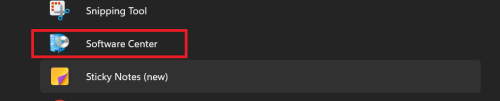
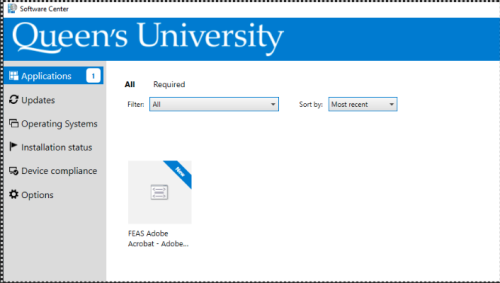
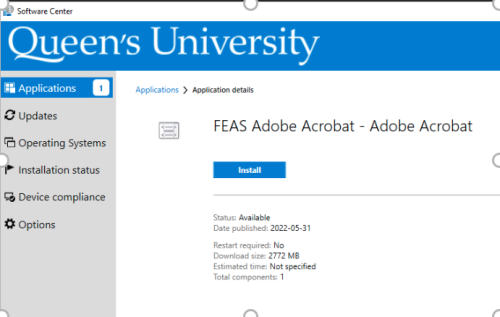
Skip to main content 1 Installing Applications from the Software Center NOTE: On campus install is recommended. Open the Software Center from Start MenuOr type Software Center into the start menu search bar 2 Selecting Software Under the applications tab you will see all the applications that you have access to If you do not have the application in the list you are looking for please log a ticket for Smith Engineering IT here Log a ticket! Note: If you are installing Adobe or any office products you will have to close all office product eg. Word, Excel, PowerPoint, Outlook etc.Click install. The program will install in the background (no user interaction). The process may take a while depending on your computer
1 Installing Applications from the Software Center NOTE: On campus install is recommended. Open the Software Center from Start MenuOr type Software Center into the start menu search bar 2 Selecting Software Under the applications tab you will see all the applications that you have access to If you do not have the application in the list you are looking for please log a ticket for Smith Engineering IT here Log a ticket! Note: If you are installing Adobe or any office products you will have to close all office product eg. Word, Excel, PowerPoint, Outlook etc.Click install. The program will install in the background (no user interaction). The process may take a while depending on your computer