Print
Launching SolidWorks from AppsAnywhere
How do I launch SolidWorks from AppsAnywhere?
If you are a MAC OS user
- You will need to connect to the Engineering Remote Desktop Pool, before launching SolidWorks.
If you are a Windows user with an under powered device
- You will need to connect to the Engineering Remote Desktop Pool, before launching SolidWorks.
Note:
Connect to FortiClient VPN before signing in to AppsAnywhere if you are trying to launch SOLIDWORKS off-campus.
1
Access AppsAnywhere
Sign in to AppsAnywhere:
https://apps.smithengineering.queensu.ca/
- Use your netID and password
2
Solidworks
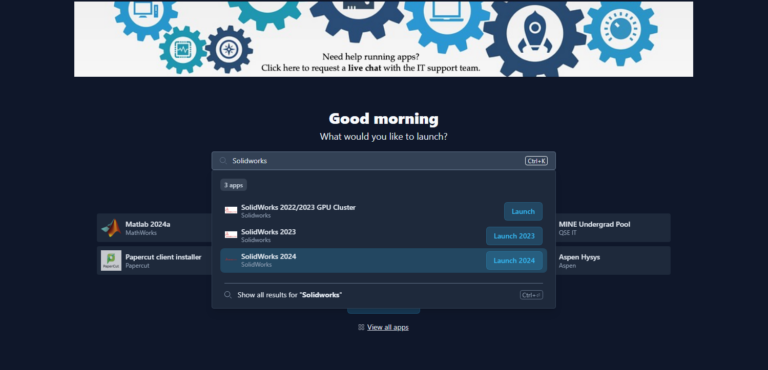
Search for Solidworks in the search field.
Click the Launch button for SolidWorks
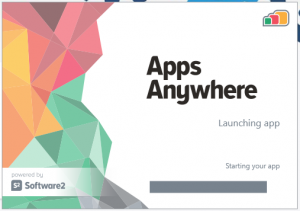
AppsAnywhere launch window will appear and SolidWorks will launch.
Note
Due to the application size, it can take several minutes for SolidWorks to launch and virtualize.
Experiencing problems launching SolidWorks?
Not Enough Cache Space Available
- If you are launching on a personal device, you may need to clear up some drive space (if unable to free up space, try connecting to the VMware Engineering Undergrad Remote Pool to Horizon Client to launch SolidWorks).
Virtualization Error
Remove SolidWorks from Cloudpaging player and re-launch from AppsAnywhere.

If you are still unable to launch SolidWorks, Contact QSE IT Support
Created On
Last Updated On