Skip to content
Skip to main content

ANSYS: Campus-Wide Licensing

How do I get an ANSYS License?

How much is an ANSYS License?

Who can procure an ANSYS License?

I already have an ANSYS license. Do I need to make the switch to the campus-wide licensing?

In short, no, you do not need to make the switch. However, the campus-wide licensing provides a wide variety of ANSYS products for a significantly better price than what you would get procuring a single Multiphysics license on your own. We strongly encourage you to read over the details of this Knowledge Base and to utilize the campus-wide licensing. 

Summary

In June 2026, Smith Engineering IT procured a campus-wide licensing for ANSYS Multiphysics. This licensing includes a variety of ANSYS products (listed below). Seats for ANSYS can be requested by anyone. The corresponding Group lead/supervisor must be able to provide a budget for the licensing purchase. 

What is Included?

Products available in the Multiphysics Campus Solution Package
Structures, Fluids & Discovery Solver Products

Ansys Mechanical Enterprise (Autodyn, Fatigue Module, Asas, Aqwa, & more)

Ansys CFD Enterprise (CFX, Fluent, FENSAP-ICE, Forte, Polyflow, Chemkin, & more)

Ansys Ensight Enterprise

Ansys Blademodeler

Ansys LS-DYNA

Ansys Forming

Ansys Additive Suite

Ansys Additive Print

Ansys Discovery Modeling

Ansys Discovery Simulation

Ansys Motion (Motion, Drivetrain, Links, Easy Flex, STEP Translator, Parasolid Translator, Catia Importer)

Ansys Sound Pro

Ansys Sherlock

Electronics & Systems Solver Products

Ansys Electronics Enterprise (Electronics Desktop, HFSS, Maxwell, & more)

Ansys Electronics Premium HFSS

Ansys Electronics Premium Icepak

Ansys Electronics Premium Slwave

Ansys Electronics Premium Q3D Extractor

Ansys Electronics Premium Maxwell

Ansys EMA3D Cable

Ansys EMA3D Charge

Ansys Motor-CAD Enterprise

Ansys RedHawk NX

Ansys RedHawk SD

Ansys PowerArtist XP

Ansys RaptorX

Ansys RaptorX HPM

Ansys NuHertz FilterSolutions

Ansys Medini Analyze Enterprise

Optics & Photonics Solver Products

Ansys Zemax OpticStudio Enterprise & Ansys Zemax OpticsBuilder for Creo

Ansys SPEOS for Creo Parametric (Enterprise, Optical Design Optimizer, Optical Sensor Test, Far Infrared Ext)

Ansys SPEOS (Enterprise, Far Infrared Ext, HUD Design & Analysis, Optical Part Design, Optical Sensor Test)

Materials Products

Ansys Granta Materials Data for Simulation

MCAD Geometry & EDA Interfaces

Ansys Geometry Interfaces for Parasolid & SAT

Ansys Geometry Interfaces for Solidwork, SolidEdge, Autodesk, NX

Ansys Geometry Interface for CATIA V5 & V6 Reader

Ansys Geometry Interface for Creo Parametric & Elements/Direct Modeling

Geometry Interface for JT

High Performance Computing

Built-in HPC (4 cores per task)

Ansys HPC (Additional floating 12 cores per task)

Ansys LS-DYNA HPC (4 cores per teaching task and 16 cores per research task)

Ansys Optis HPC (Additional 12 floating cores per task)

Ability to extend built-in HPC (at extra cost)

Other

Ansys optiSLang Enterprise

Floating LAN Licenses (Country Wide standard)

How do I get Access?

This is for creating new ANSYS license Groups only. If you already have an ANSYS license group and wish to make adjustments to seats/users, see ‘How do I modify users and seats?‘. 

Anyone can make a request for ANSYS Multiphysics seats.

Please note:

  • Applicable leads/supervisors of groups must be able to provide a chartfield  for the cost ($1000/seat).
    • This cost will be pro-rated, when applicable, based on your purchase date in relation to the annual renewal period in May.
  • Seats are procured on an annual basis; if you only need the license for a limited time, you will still be expected to pay for the entire year in full or pro-rated, purchase date dependant.
  • The seats are concurrent. If you buy 1 license, only 1 person can use it at a given moment in time. Please plan accordingly based on the needs of your group. 


You can submit a request to create a new license group through the Service Desk:

1

Navigate to the Service Desk

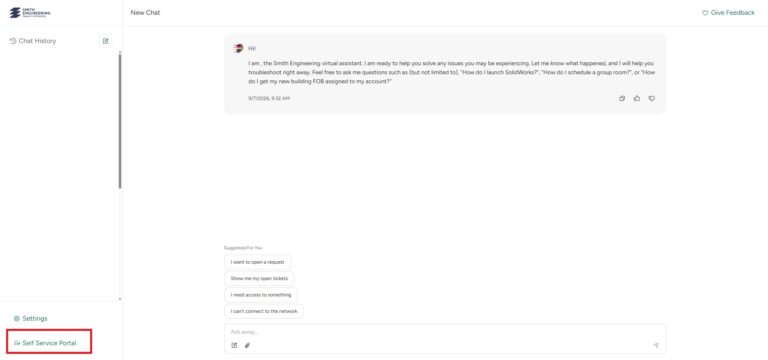
Go to the Service Desk and sign in with your NetID and password. Then, navigate past the Service Desk AI to the SSP by clicking ‘Self-Service Portal’ on the bottom left-hand corner of the page.

2

Navigate to "Create New License Group"

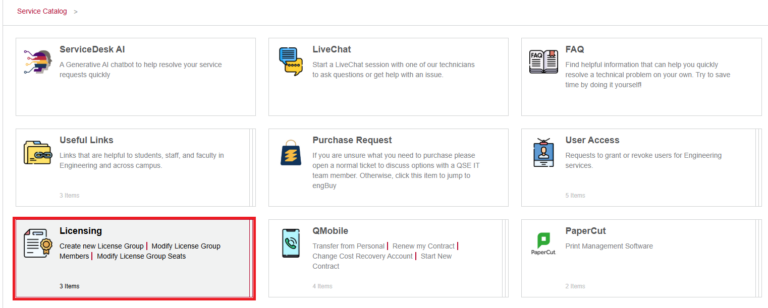
From your Home menu in the Service Desk Self-Service Portal, scroll down to the category titled ‘Licensing’ and click on it. On the next page, click on ‘Create new License Group’. 

3

Fill out the Request Form

Please carefully read over the instructions at the top of the request form on how to fill out the fields so as to ensure it is completed accurately and correctly. 

4

Cooperate with any next steps

Once the request is submitted, a ticket will be created. The requester will receive update emails.

Whomever the group owner is will be contacted regarding the seat procurement. They will have to provide a budget approval and chartfield in EngBuy for the cost recovery. The Smith Engineering Finance team will finalize the Journal Entry. Once complete, the SysOps team will provision the license(s) and reach out with details on how to access it/them. 

How do I modify users and seats?

This is for existing ANSYS license groups only. If you do not have a license group yet, see ‘How do I get Access?‘. 

If you are looking to add seats, please keep in mind that applicable costs will apply ($1000/year or pro-rated cost, purchase-date dependent in relation to the annual renewal in May).

 You can submit a request to modify users or seats through the Service Desk:

1

Navigate to the Service Desk

Go to the Service Desk, and sign in with your NetID and password. Then, navigate past the Service Desk AI to the SSP by clicking ‘Self-Service Portal’ on the bottom left-hand corner of the page.

2

Navigate to 'Licensing - Modify License Group'

From your Home menu in the Service Desk Self-Service Portal, scroll down to the category titled ‘Licensing’ and click on it. On the next page, select either, ‘Licensing – Modify License Group Seats’, to request the addition of seats, or ‘Licensing – Modify License Group Members’, to add or remove users. If you need to both add and remove users, please submit two separate requests.

3

Fill out the Request Form

Please carefully read over the instructions at the top of the request form on how to fill out the fields so as to ensure it is completed accurately and correctly. 

4

Cooperate with any next steps

Once the request is submitted, a ticket will be created. The requester will receive update emails.

The Smith Engineering IT team will reach out when the modification of seats or users is completed. 

For the addition of seats only:

Whomever the group owner is will be contacted regarding the seat procurement. They will have to provide a budget approval and chartfield in EngBuy for the cost recovery. The Smith Engineering Finance team will finalize the Journal Entry. Once complete, the SysOps team will provision the license(s). 

Installation &Configuration

Installation packages can be downloaded from [coming soon] by members of License Groups.

The license server is QSE-LS1.ad.QueensU.ca and the default port – 1055 is being used.