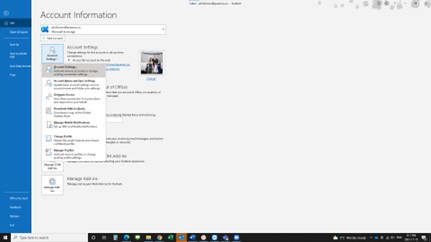
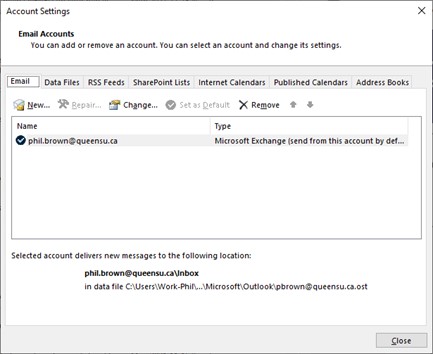
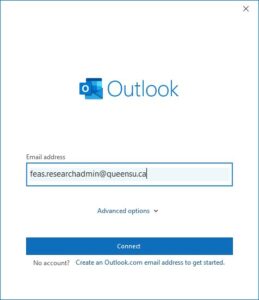
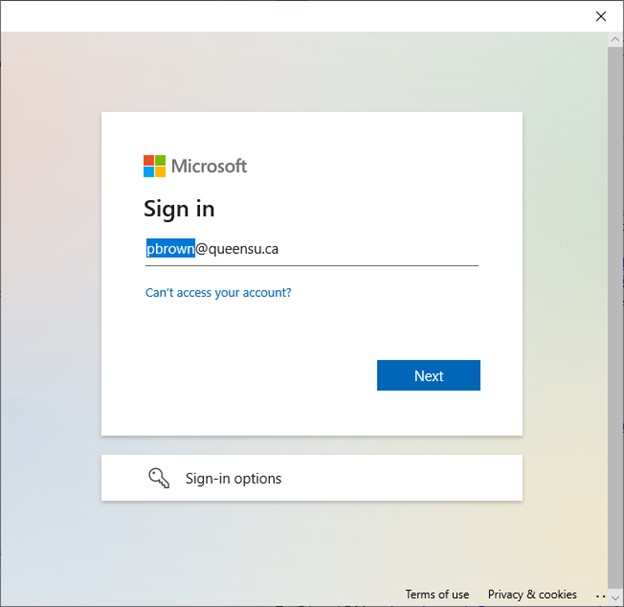
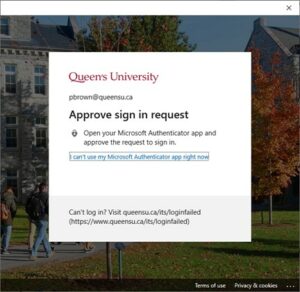
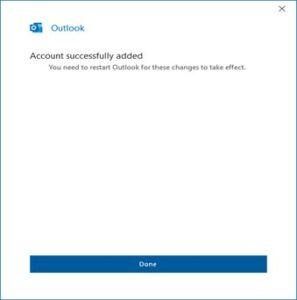
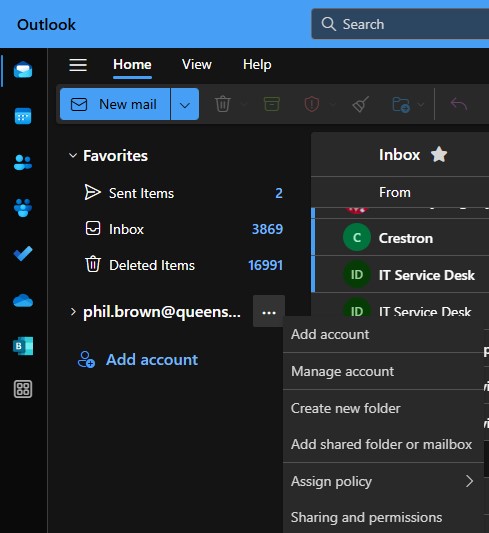
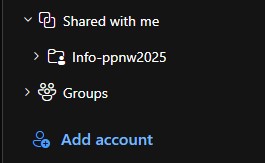
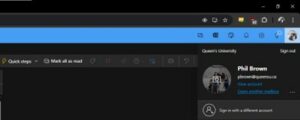
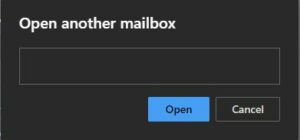
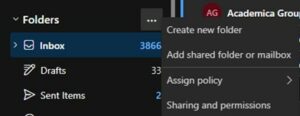
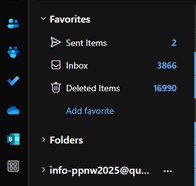
Skip to main content Adding a Shared Mailbox to Outlook How do I add a shared mailbox to Outlook? Jump to: Outlook (Classic) 1 Outlook configuration In Outlook click the File menu in the top left corner.Proceed to select the top square that says Account Settings.Click Account Settings again from the drop down menu. Select “New” and proceed to enter the email address of the shared mailbox.Click Connect 2 Authenticate When the Microsoft box appears, change the sharedmailbox@queensu.ca to your NetID@queensu.ca When your NetID and password is entered, approve the sign in request however you usually do Close and Re-open Outlook and Mailbox should be there Outlook (New) 1 Add shared mailbox Click the … beside your mailboxSelect Add Shared folder or mailbox Enter shared mailbox email address and click “Add” Note The shared mailbox appears under "shared with me" - Make sure to look for it at the bottom left and expand it Go to the admin section. Office 365 - New Tab 1 Opening the shared mailbox in a different tab Sign into your Office365 AccountClick your Profile Picture (Top-Right)Select Open another Mailbox Enter the Shared Mailbox Email address and click Open. The mailbox will appear in a different tab or Window Office 365 - Persistent 2 Adding the shared mailbox as a persistent mailbox below your Primary mailbox Sign into your Office365 Account It should then appear below your Inbox, and should reappear whenever you log in to your email on the web (in this example info-ppnw2025@queensu.ca)
Adding a Shared Mailbox to Outlook How do I add a shared mailbox to Outlook? Jump to: Outlook (Classic) 1 Outlook configuration In Outlook click the File menu in the top left corner.Proceed to select the top square that says Account Settings.Click Account Settings again from the drop down menu. Select “New” and proceed to enter the email address of the shared mailbox.Click Connect 2 Authenticate When the Microsoft box appears, change the sharedmailbox@queensu.ca to your NetID@queensu.ca When your NetID and password is entered, approve the sign in request however you usually do Close and Re-open Outlook and Mailbox should be there Outlook (New) 1 Add shared mailbox Click the … beside your mailboxSelect Add Shared folder or mailbox Enter shared mailbox email address and click “Add” Note The shared mailbox appears under "shared with me" - Make sure to look for it at the bottom left and expand it Go to the admin section. Office 365 - New Tab 1 Opening the shared mailbox in a different tab Sign into your Office365 AccountClick your Profile Picture (Top-Right)Select Open another Mailbox Enter the Shared Mailbox Email address and click Open. The mailbox will appear in a different tab or Window Office 365 - Persistent 2 Adding the shared mailbox as a persistent mailbox below your Primary mailbox Sign into your Office365 Account It should then appear below your Inbox, and should reappear whenever you log in to your email on the web (in this example info-ppnw2025@queensu.ca)