NOTE: If you do not have PSIM 2026 or greater installed on your PC please follow the instructions below and download the software with PSIM in the title then return to complete your accountSoftware Center – Smith Engineering
1
Register your PSIM account
NOTE: If you already have an Altair account, skip to step 4
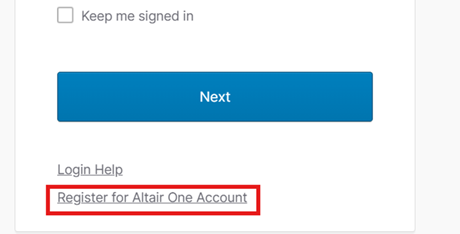
Click Sign-in at the upper right corner of the site
Select Register for Altair One Account
2
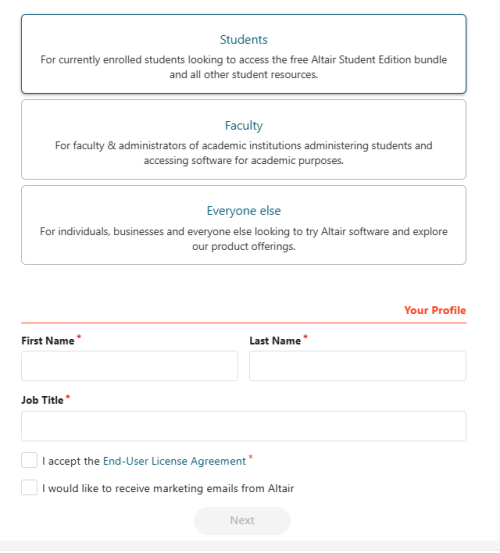
Demographics
Select Student as your account type, and enter First and Last Name with Job Title as Student. Once you have entered the information, check the “I accept the End-User License agreetment” check box and select next.
3
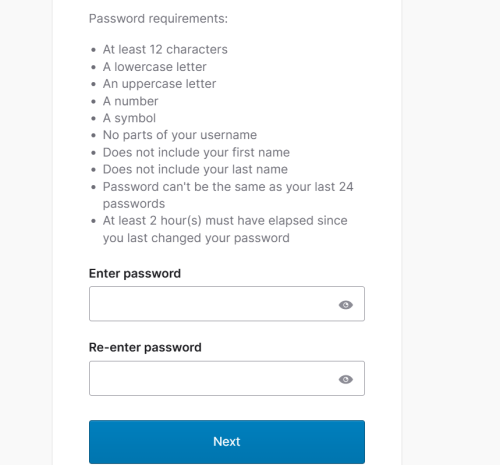
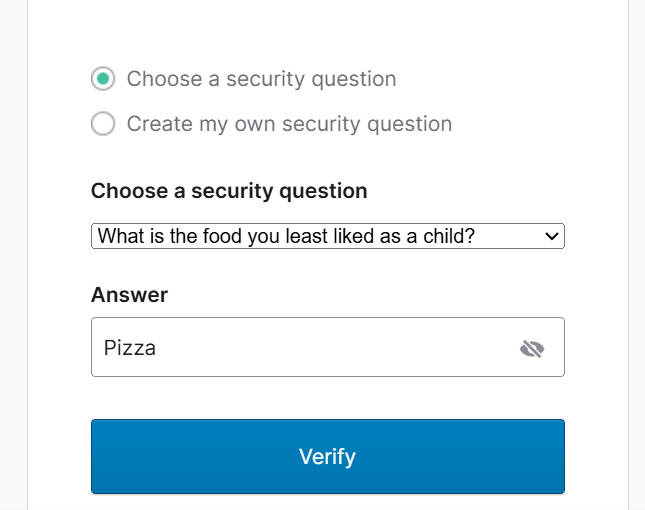
Security
Then follow the password recommendations and select a security question and answer.
4
Activate License
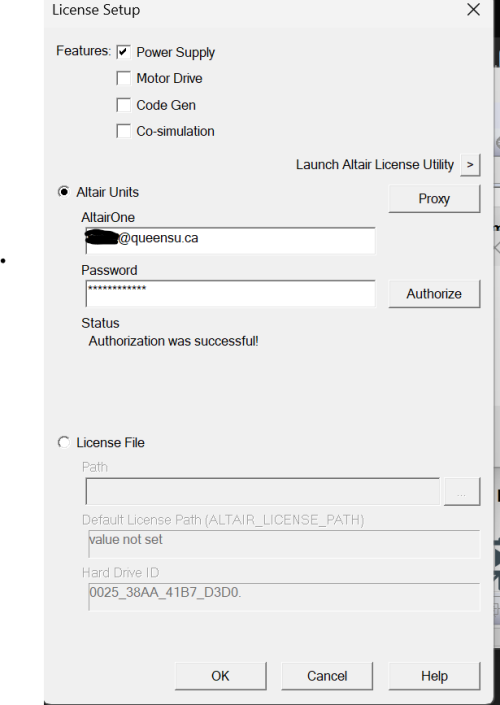
Lauch PSIM, upon loading you will be prompted with a license error. OK passed it and the license setup with open. Input the account information that you just created.
NOTE: If you do not have PSIM installed on your PC please follow these instructions Software Center – Smith Engineering IT substituting PSIM for the software. Once you have opened PSIM you will be prompted with a license error. Select OK, and you will be prompted to enter the license information.