Skip to content
Skip to main content
Getting Started with Fusion Hubs

How do I create a Fusion hub?

Do I need to create a Fusion hub?

How do I join a Fusion hub?

Can I create and join a Fusion hub?

How do I invite or remove users from my hub?

Creating a Fusion Hub

1

Download Fusion

If you haven’t already, download Fusion from AppsAnywhere and sign in with your NetID credentials, following the instructions from our Knowledge Base:

2

Verify Licensing

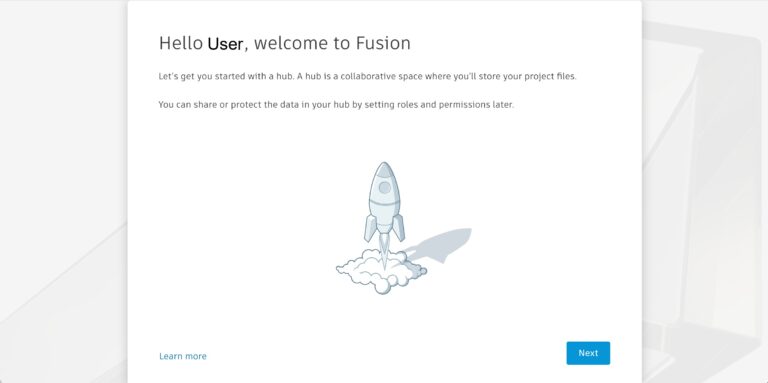
Once you are signed in, open the Fusion application and toggle through the pop-up windows.

There are two potential screens you could be met with: 

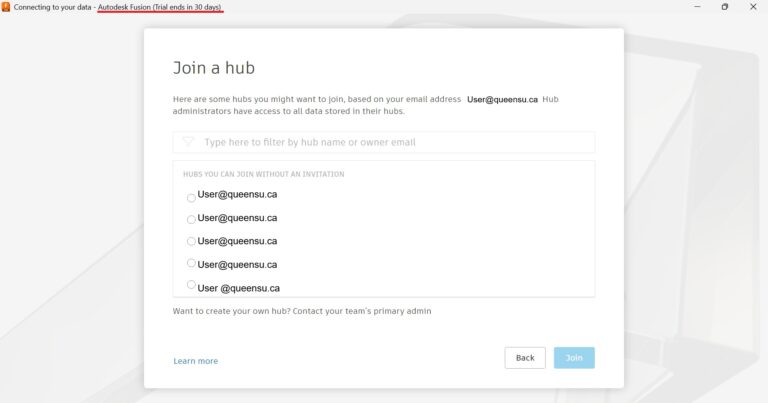
  1. If you are met with a page that asks you to ‘Join a Hub’ and the top banner reads ‘Trial ends in 30 days’, it means you do not have a license assigned to you. If that is the case, please submit a ticket via the ServiceDesk for IT review. Remember, you are not guaranteed a license; it will be dependent on your grouping. 


If you are a part of APSC 162 you should automatically be assigned a license. If you do not have a license, please submit a ticket.

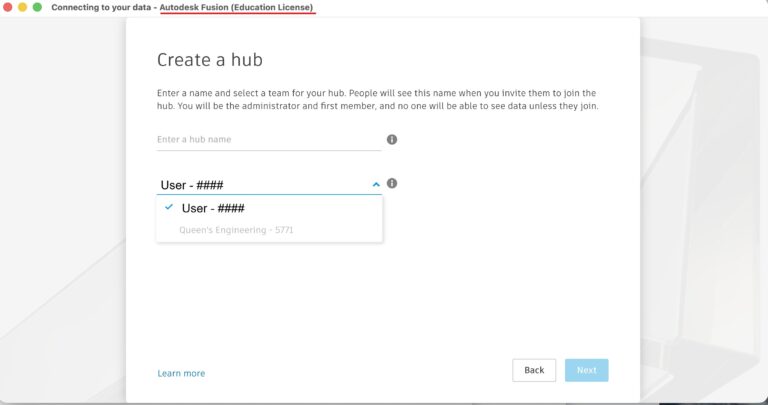
2. If you are met with a page that asks you to ‘Create a Hub’ and the top banner reads ‘Education License’, it means you have a license assigned to you. Please proceed to the next step for further information.

3

Create a Hub

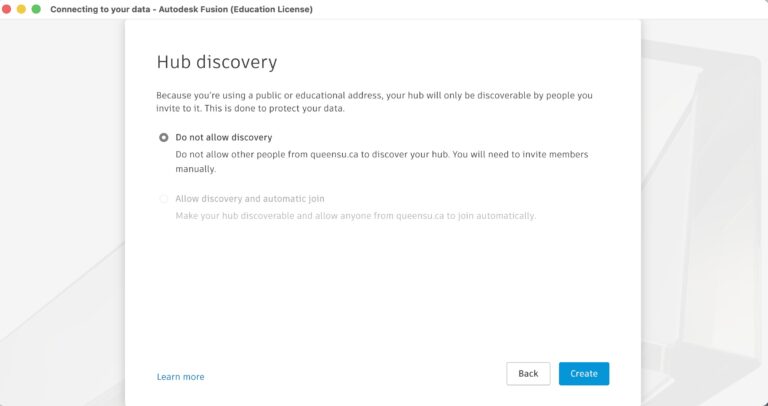
If you have a license, you will be able to create a hub. You can name your Hub and restrict its access (this is strongly recommended) to prevent unwanted access.

Inviting and Removing users

1

Inviting users to a hub as an Admin

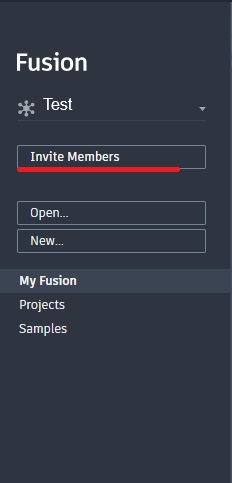
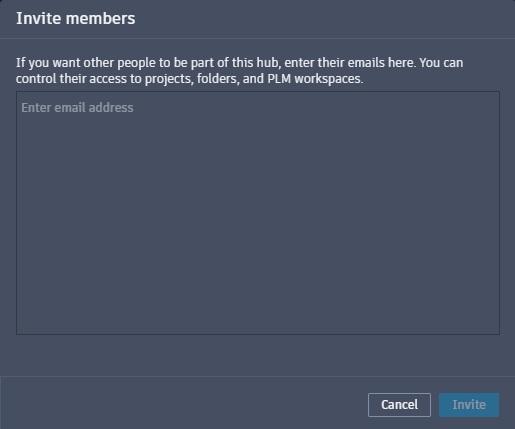
To invite users to a hub you have created, go to ‘Invite Users’ on the lefthand toolbar while signed into Fusion. Enter the emails of those you wish to invite to your hub.

2

Removing Users from hubs

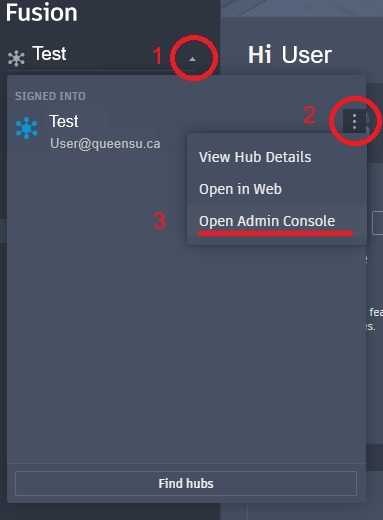
To remove users from your hub, access the Admin Console.

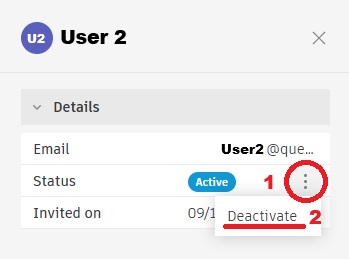
Once you are in the Admin Console, navigate to ‘Members’, select the member you wish to remove, and set their status to ‘Deactivated’. Currently, you cannot remove a user from the members list, but deactivating them will remove their hub access. 

Joining a Fusion Hub

1

Joining a hub with an invite

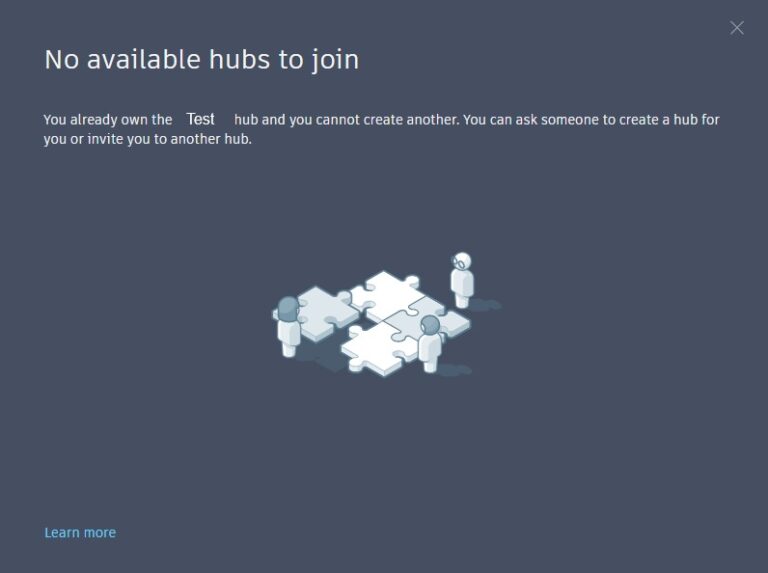
Once you have created a hub, you cannot search for Hubs to join. You must receive an invite link. 

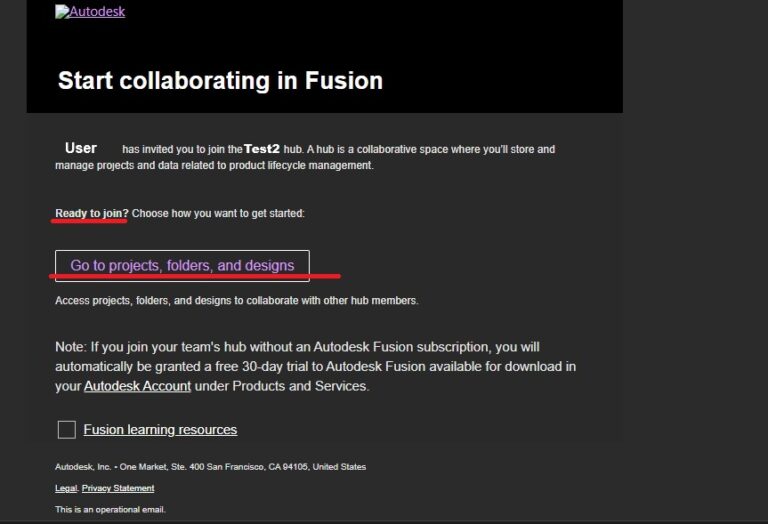
If you are invited to a hub, expect to receive an email with an invite link. Alternatively, you may be part of a course where your instructor provides an invite link to a hub. Use the invite link to join the hub.

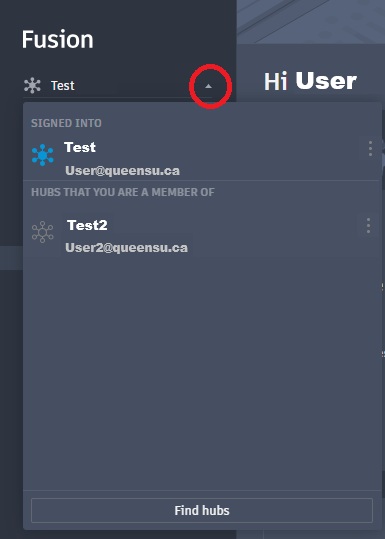
Once you accept the invite, your new hub should show up in your list. You can toggle between them as needed.